
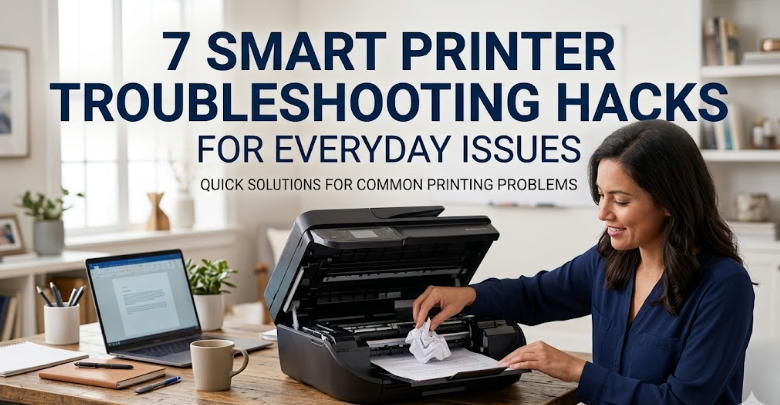
7 Smart Printer Troubleshooting Hacks for Everyday Issues
Introduction
Printers are one of those devices that seem simple until they suddenly stop working right when you need them most. Whether it’s a wireless printer refusing to connect, paper getting stuck repeatedly, or print quality dropping without warning, everyday printer problems can quickly become frustrating.
The good news is that most issues don’t require professional repair. In fact, many common printer problems can be fixed at home using a few smart troubleshooting habits. The key is knowing what to check, what to reset, and how to maintain your printer so problems don’t keep coming back.
This article explores seven practical troubleshooting hacks that can help you deal with everyday printer issues efficiently, even if you’re not technically inclined.
Hack 1: Restart Everything Before You Panic
It sounds too simple, but restarting remains one of the most effective printer troubleshooting methods. Many issues happen because of temporary communication errors between your computer and printer.
Start by turning off your printer and unplugging it from the power source. Wait for at least 30–60 seconds. While you’re at it, restart your computer or phone as well. Then plug the printer back in and turn it on.
This process clears temporary memory glitches, resets network connections, and often resolves issues like:
- Printer not responding
- Print jobs stuck in queue
- Wireless connection failures
- Random error messages
Think of it as giving your printer a fresh start.
Hack 2: Check the Print Queue and Clear Hidden Jobs
One of the most overlooked problems is a clogged print queue. A single stuck document can block all other print jobs.
To fix this:
On Windows:
Go to Control Panel → Devices and Printers → Right-click your printer → See what’s printing → Cancel all documents.
On Mac:
Go to System Settings → Printers → Open Print Queue → Delete all pending jobs.
After clearing the queue, restart the printer and try printing again.
This hack is especially useful when your printer shows “Ready” but does nothing when you send a print command.
Hack 3: Reconnect Wi-Fi or USB Properly
Connectivity issues are among the most common printer problems today, especially with wireless printers.
If you’re using Wi-Fi:
- Make sure the printer is connected to the correct network
- Restart your router
- Move the printer closer to the router if signal is weak
- Re-enter Wi-Fi credentials if needed
If you’re using USB:
- Try a different USB port
- Replace the cable if it looks damaged
- Avoid using USB hubs for connection
Sometimes printers disconnect after network changes or router updates, so re-establishing the connection often solves the issue immediately.
Hack 4: Clean Print Heads for Better Quality
If your prints look faded, streaky, or incomplete, the print head is usually the culprit. Inkjet printers especially suffer from clogged nozzles when not used regularly.
Most printers have a built-in cleaning option:
- Go to printer settings on your computer
- Select Maintenance or Tools
- Click “Clean Print Head” or “Deep Cleaning”
You may need to run the process 1–2 times for best results.
For stubborn cases, manual cleaning may be required using a lint-free cloth and recommended cleaning solution. However, always check your printer manual before attempting physical cleaning.
Regular use of this hack helps maintain consistent print quality.
Hack 5: Update or Reinstall Printer Drivers
Outdated or corrupted drivers can cause a surprising number of issues, including:
- Printer not detected
- Printing delays
- Missing features
- Random error codes
To fix this, visit the official website of your printer brand and download the latest drivers for your model.
Alternatively:
- Uninstall the current printer driver
- Restart your computer
- Reinstall the latest version
This ensures your system communicates properly with your printer hardware.
Keeping drivers updated is especially important after operating system updates.
Hack 6: Inspect Paper Path and Rollers
Paper jams are one of the most common and annoying printer issues. Even small dust particles or misaligned sheets can cause repeated jams.
Here’s what you should check:
- Remove all paper and reload it properly
- Make sure sheets are not wrinkled or damp
- Adjust paper guides correctly
- Check inside for torn paper pieces
- Clean rollers gently with a soft cloth
If your printer frequently jams, it may be using incorrect paper size settings or low-quality paper.
Preventing jams is mostly about careful loading and regular cleaning.
Hack 7: Reset Printer Settings to Factory Default
When nothing else works, a factory reset can often resolve deeper software or configuration problems.
This is useful when:
- Printer behaves unpredictably
- Network settings are corrupted
- Errors keep reappearing
- Settings have been changed accidentally
Most printers allow reset through the settings menu or by holding a combination of buttons.
After resetting, you will need to reconfigure Wi-Fi, preferences, and device connections.
This hack is like wiping the slate clean and starting fresh.
Bonus Tips for Long-Term Printer Health
While troubleshooting helps fix issues, prevention is even better. Here are a few habits that reduce future problems:
- Print regularly to prevent ink drying
- Turn off printer properly instead of unplugging suddenly
- Keep printer dust-free
- Use quality ink and paper
- Avoid overloading paper tray
- Update software periodically
These small habits can significantly extend the lifespan of your printer.
Common Mistakes People Make While Troubleshooting
Many users accidentally worsen printer issues by:
- Reinstalling drivers repeatedly without checking basics
- Forcing paper out during jams
- Ignoring error messages
- Using incompatible ink cartridges
- Skipping firmware updates
Understanding what not to do is just as important as knowing the fixes.
When to Seek Professional Help
Not all problems can be solved at home. You may need expert assistance if:
- Printer makes unusual mechanical noises
- Hardware parts are visibly damaged
- Persistent error codes appear even after resets
- Printer fails to power on
At that point, internal components may require repair or replacement.
Conclusion
Printer issues are frustrating, but most everyday problems can be solved with simple, practical steps. Restarting devices, clearing print queues, checking connectivity, cleaning print heads, updating drivers, and maintaining proper paper handling can resolve the majority of issues without professional help.
The key is consistency. Regular maintenance prevents most problems before they even appear. Instead of reacting to printer failures, a few smart habits can keep your device running smoothly for years.
FAQs
- Why does my printer keep going offline randomly?
This usually happens due to weak Wi-Fi signals, outdated drivers, or power-saving settings. Reconnecting the printer and updating drivers often resolves the issue.
- How often should I clean my printer?
For inkjet printers, light cleaning every few weeks and deep cleaning every few months is ideal, especially if you don’t print frequently.
- Why is my printer printing blank pages?
This can be caused by clogged print heads, empty ink cartridges, or incorrect driver settings. Running a nozzle check usually helps identify the problem.
- What should I do if my printer won’t connect to Wi-Fi?
Restart the printer and router, confirm the correct network name, and re-enter Wi-Fi credentials. If needed, reset network settings on the printer.
- Can outdated drivers really cause printing issues?
Yes, outdated or corrupted drivers are one of the most common causes of printing errors, connection problems, and missing printer features.
- Is it better to repair or replace a faulty printer?
If repair costs are high or the printer is old and frequently malfunctioning, replacement is often more cost-effective in the long run.






